kaylee.stec
Hi Friends! We’ve made a big update to people pages today! Rejoice!

So below is the explanation for customers through our Help Pages. If you need any clarification, let me know!
Once you’ve entered Design People Pages, selected a template of your choosing, and assigned the template to a page, you have the ability to edit and personalize that assigned page! Enter the page you’ve assigned. It may take a moment for people pages to complete generation, so don’t worry if your locked out of the page. Simply wait and refresh the page. Once in the Page Designer, you may notice the Edit People Page button available from the bottom of your screen. Clicking the button will show you the group assigned to the page, the name of the template you’ve assigned, the current number of profiles on that page, and a button on the far right of the menu labeled “Insert People Page Field”.

Let’s say you’ve assigned a template that requires your group to be split up into more than one people page. You’ve assigned that first page, but you’d like there to be more students on that first page. You can now change the number of profiles on that page. Simply increase the number and exit the menu. Your people page will process the request, and change the photo frames and name frames to show those new people you’ve added, without refreshing the entire page and extra content you’ve added. If you need additional frames, simply increase the profile number. You can also add custom fields right on your page without creating a new template entirely. To do so, click the Insert People Page Field button, then clicking the photo box to a specific location on your page. This will bring up a pop-up window with the people page properties information. You can change the type/tag to custom, name, or photo, and then select which position the people page would appear in. If you pick position 1 with the type/tag CUSTOM, a box will appear for a custom field for the first person. If you’ve already filled out the custom field here, that content will populate into the generated field.
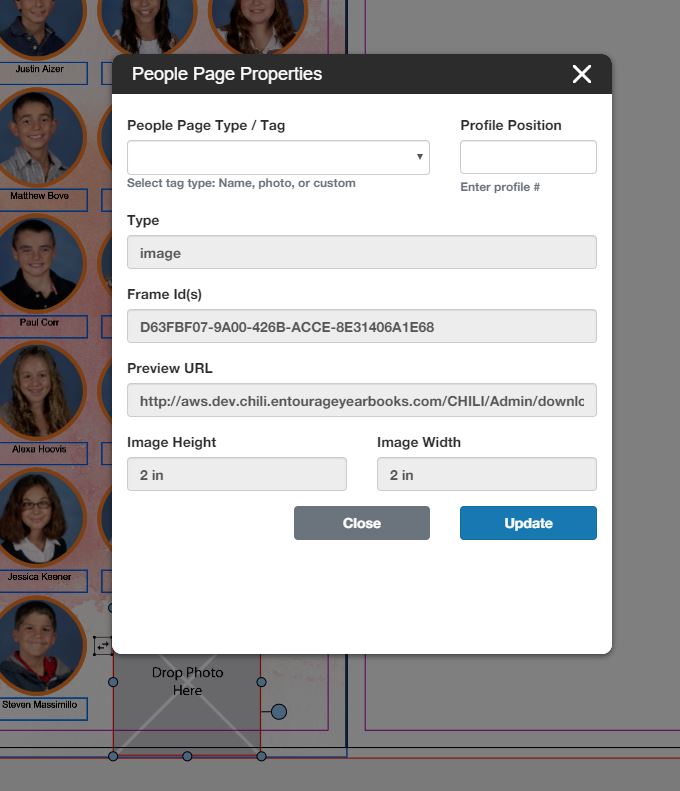
You can also edit these fields. If you want to update the text, or if you want to add more than one custom field, you can do so by right clicking the custom box, then clicking the Properties option. This will bring back the People Page Properties menu for you to fill out.